Over 50 million Xbox One consoles have been sold globally, yet most gamers have never tried to play Xbox One on a laptop screen — even when the TV is tied up or unavailable. If you're in a dorm room, traveling, or just need a secondary display option, your laptop can work as a monitor substitute. Before you grab a cable, though, there's one critical hardware fact you need to understand first. For an overview of gaming and home entertainment gear, browse the tech and electronics section. If you're also thinking about long-term display upgrades, our guide on how to choose a gaming monitor for PC or console covers what specs actually matter.

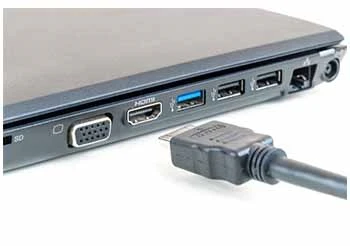
Here's what most tutorials skip: virtually every standard laptop HDMI port is output-only. Your laptop was built to send video out to projectors and external screens — not receive video from other devices. Plugging your Xbox HDMI cable directly into your laptop's HDMI port produces nothing. You need either a laptop with a dedicated HDMI-in port (found on some older high-end gaming laptops) or a USB capture card that acts as a video-in device. The capture card route is the most reliable, widely available solution.
Once you have a capture card, here's the exact setup process:
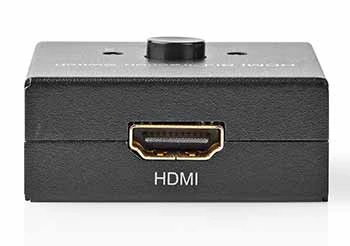
HDMI carries both video and audio in a single cable, so your Xbox audio routes through automatically once the software is running. Expect a processing delay of 1 to 3 seconds through standard capture software. Cards with low-latency passthrough mode — such as the Elgato HD60 S+ or AVerMedia Live Gamer Portable 2 Plus — cut that delay to under 60ms, which is playable for most genres. For competitive shooters, passthrough mode is not optional.
Contents
Even with the right hardware in hand, things go sideways. Here are the most common problems and exactly how to fix them.
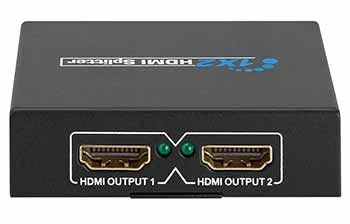
This is the most reported issue. Nine times out of ten, it traces back to one of these causes:
Work through this list top to bottom before assuming your hardware is defective. A driver update or the correct USB port resolves the black screen in most cases.
Getting video but no sound? Check these first:
For input lag, low-latency passthrough mode is the most effective fix. Enable it in your capture card settings. If your card doesn't support passthrough, Xbox Remote Play through the Xbox app on Windows offers lower effective latency for casual sessions.
Blurry or stretched image? Run through this checklist:
Before you commit to this setup, know exactly what you're trading for the convenience factor.
| Method | Input Lag | Cost | Portability | Setup Difficulty |
|---|---|---|---|---|
| Laptop HDMI-in port (if available) | Very low (~1ms) | No extra cost | High | Easy |
| USB capture card | Low–Medium (30–200ms) | $60–$200 | High | Moderate |
| Xbox Remote Play (Wi-Fi) | Variable (20–100ms) | Free (Xbox app) | Very High | Easy |
| Dedicated TV or gaming monitor | Very low (1–5ms) | $150–$500+ | Low | Very Easy |
If you want to go the full dedicated-display route eventually, our article on how to set up a home theater system on a budget walks through exactly how to build a clean gaming and entertainment space without overspending.
These are the errors that send people back to search engines convinced their setup is broken — when the fix is almost always simple.
The number one mistake is treating HDMI as a two-way street. It isn't. Signal direction is determined by the hardware at each end:
With a capture card, the correct chain is: Xbox HDMI-out → capture card HDMI-in → USB → laptop. Reversing any link in that chain breaks everything.
The same principle of matching specs before committing to hardware applies across all tech setups — our guide on how to buy the best wireless earbuds with noise canceling walks through a similar pre-purchase checklist worth reading.
A working connection needs regular upkeep. A few consistent habits keep your cables, ports, and software running at full performance.
Not directly. Almost all laptop HDMI ports are output-only, so a direct HDMI connection from your Xbox produces no picture. You need either a laptop with a built-in HDMI-in port or a USB capture card to receive the Xbox video signal on your laptop display.
The Elgato HD60 S+ and AVerMedia Live Gamer Portable 2 Plus are consistently the top recommendations. Both support 1080p60 capture, offer low-latency passthrough mode, and have reliable driver support for Windows and Mac. Budget cards like the Razer Ripsaw work for casual play but add more lag.
Standard capture software adds 1 to 3 seconds of delay. Capture cards with dedicated low-latency passthrough mode reduce this to under 60ms — still slightly more than a direct TV connection, but tolerable for most genres outside of competitive multiplayer shooters.
Yes. Xbox Remote Play through the Xbox app on Windows streams your console to your laptop over your home network without extra hardware. On a strong 5GHz Wi-Fi connection, latency runs 20 to 60ms — playable for most game types. Performance degrades significantly on congested or 2.4GHz networks.
Set your Xbox to 1080p and disable HDR. Match your output resolution to your laptop screen's native resolution to avoid scaling artifacts. Most laptops run at 1920×1080, and keeping the settings aligned prevents blurry or stretched output in the capture software.
Yes — it matters a lot. You need a USB 3.0 port, identifiable by the SS (SuperSpeed) label or a blue-colored port interior. USB 2.0 does not have sufficient bandwidth for 1080p60 video capture and causes dropped frames, stuttering, or a complete signal failure depending on the card.
Yes. HDMI carries both audio and video, so your Xbox audio routes through the capture card to your laptop speakers or headphones automatically. For zero-latency audio, you can also plug a headset directly into the Xbox controller, bypassing the capture card's audio path entirely.
Absolutely — capture cards are built for exactly this purpose. Once your Xbox feed is visible in OBS or your capture software, you add a streaming key for Twitch or YouTube and go live directly. No additional hardware is required beyond what you already need to play Xbox One on your laptop screen.
You now have everything you need to play Xbox One on a laptop screen the right way — pick up a USB 3.0 capture card, follow the six-step setup above, and you'll have a working display in under 30 minutes. Start with a mid-range card that supports low-latency passthrough, dial in your Xbox resolution settings, and you're ready to game anywhere. Head over to our full tech and electronics section for more hands-on gear guides built around real-world use.


About Mike Constanza
For years, Mike had always told everyone "no other sport like baseball." True to his word, he keeps diligently collecting baseball-related stuff: cards, hats, jerseys, photos, signatures, hangers, shorts (you name it); especially anything related to the legendary player Jim Bouton.Mike honorably received Bachelor of Science degree in Business Administration from University of Phoenix. In his graduation speech, he went on and on about baseball... until his best friend, James, signaled him to shut it.He then worked for a domain registrar in Phoenix, AZ; speciallizng in auction services. One day at work, he saw the site JimBouton.com pop on the for-sale list. Mike held his breath until decided to blow all of his savings for it.Here we are; the site is where Mike expresses passion to the world. And certainly, he would try diversing it to various areas rather than just baseball.
You can get FREE Gifts. Or latest Free phones here.
Disable Ad block to reveal all the info. Once done, hit a button below
 im
im