You can use a single jack headset on PC without a splitter — and the fix is simpler than most people realize. Plug it into your PC's combo audio jack or use a USB audio adapter, and you're set. No splitter, no complicated wiring.
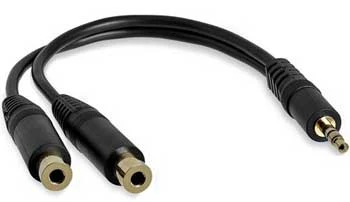
Most modern headsets — gaming headsets, smartphone earbuds, video call headsets — use a single 3.5mm TRRS connector (Tip-Ring-Ring-Sleeve), which carries both audio output and microphone input through one plug. Laptops almost always have a combo jack built in. Desktops vary — older models split the mic and headphone ports into two separate jacks, while many newer ones combine them into a single combo port that works perfectly with your headset.
Understanding your port setup is the first step to getting this right. If you've dealt with similar connector questions before, our guide on how to use iPhone mic on PC covers the same TRRS concepts in a slightly different context. For more guides like this, visit our tech and electronics section.
Contents
Using a single jack headset on PC is the right call in most everyday scenarios. If your laptop or desktop already has a combo audio port — look for a single jack marked with a headset icon — you can plug in and start using your headset immediately. No extra gear, no configuration beyond a few Windows clicks.
A USB audio adapter — available for $7 to $20 — solves the problem cleanly if your desktop lacks a combo jack. It adds a dedicated combo port and often delivers cleaner audio than the built-in motherboard sound card.
This setup has real limits. If you're recording voiceovers, podcasting, or streaming with high production standards, a USB microphone or XLR setup will deliver noticeably better results. And if you're doing professional audio work that demands ultra-low latency, a dedicated audio interface is the right tool — not a 3.5mm connection.

Before buying anything, look at your PC's audio ports. On a laptop, you almost certainly have a combo jack — a single port with a headphone-and-mic icon. On a desktop, check both the front panel and the rear I/O panel. A headset icon with a small mic symbol means it's a combo port. Separate green and pink ports mean you have split jacks.
You can also check in Windows: right-click the speaker icon in the taskbar, open Sound Settings, and watch what input and output devices appear when you plug in your headset. If both show up under the same device, you have a working combo jack.
If your desktop only has separate ports, here are your three options:
For most people, the USB audio adapter wins. Brands like UGREEN, Sabrent, and Plugable make solid options that are plug-and-play with Windows.
If you already have a combo jack, this takes about 60 seconds:
Always choose "Headset" — not "Headphones" — when Windows asks what you plugged in. Selecting the wrong option disables the microphone channel entirely, and it's the most common reason people think their headset is broken when it isn't.
If you're using a USB audio adapter instead:

If you run into audio configuration issues after setup, our detailed guide on how to use a headset mic on PC with one jack walks through the Windows audio settings in depth and covers some edge cases that trip people up.
Ditching the splitter simplifies your setup. Fewer cables, fewer adapters to lose or break, and a cleaner workspace. USB audio adapters also frequently outperform built-in motherboard audio because they move audio processing outside the PC case — away from the electrical interference generated by other components.
It's not the right choice for every situation. Here's an honest comparison so you can decide what fits your needs:
| Setup | Audio Quality | Mic Quality | Cost | Complexity |
|---|---|---|---|---|
| Built-in combo jack | Good | Good | Free | Very low |
| USB audio adapter | Good to very good | Good | $7–$20 | Low |
| Splitter + split jacks | Good | Good | $5–$10 | Low |
| USB headset | Very good | Very good | $20–$100+ | Low |
| Dedicated audio interface | Excellent | Excellent | $50–$200+ | Medium |
Don't leave your audio at Windows defaults — a few quick tweaks make a real difference in clarity and consistency.
A quiet microphone is one of the most common complaints with single jack headsets on PC. Here's how to fix it without adding distortion:
Don't max out the boost slider. Too much gain introduces background hiss that's worse than a quiet mic. Find the level where your voice is clear and present without any added noise.
Dirty audio jacks cause crackling, intermittent audio, and connection dropouts. This is especially common on older systems or any port that sees daily use.
Cable stress is the leading cause of headset failure. Always grip the plug itself when disconnecting — never yank by the cable. Avoid sharp bends near the connector, which gradually break internal wires. When you're not using your headset, loop the cable loosely rather than wrapping it tightly around the earcups.
This is the most reported issue with single jack headsets on PC. Work through this checklist before assuming your headset or port is broken:
If sound keeps coming from your speakers after connecting your headset, Windows hasn't switched the default output device. Here's how to fix it:
Remember to check app-level audio settings too. Chrome, Discord, Zoom, and most game clients have their own audio device selectors that can override what Windows is set to.
Yes — if your PC has a combo audio jack (a single port with a headset icon), you can plug a smartphone TRRS headset directly in and it works for both audio and mic. Laptops almost always have this. If your desktop has only separate green and pink jacks, you'll need a USB audio adapter to get both functions working.
Your phone's headset port is a TRRS combo jack, which carries mic and audio through one plug. If your desktop has separate headphone and mic jacks, plugging your TRRS headset into the headphone jack gives you audio but disables the mic — the mic ring has nowhere to connect. A USB audio adapter with a combo jack solves this completely.
For most desktop setups, yes. USB adapters process audio outside the PC case, away from the electrical noise generated by your GPU, CPU, and power supply. Many users hear noticeably less background hiss and static compared to their motherboard's built-in audio — especially on budget boards where onboard audio is an afterthought.

Using a single jack headset on PC without a splitter is straightforward once you know your port situation — check your jacks, grab a USB audio adapter if needed, spend two minutes in Windows Sound Settings, and you're done. Take the next step right now: plug in your headset, run through the Windows setup steps in this guide, and test your mic with a quick Voice Recorder clip before your next call or gaming session. It works better than you'd expect, and you'll wonder why you ever thought you needed a splitter in the first place.


About Lindsey Carter
Lindsey and Mike C. grew up in the same neighborhood. They also went to the same Cholla Middle School together. The two famillies from time to time got together for BBQ parties...Lindsey's family relocated to California after middle school. They occasiotnally emailed each other to update what's going on in their lives.She received Software Engineering degree from U.C. San Francisco. While looking for work, she was guided by Mike for an engineering position at the company Mike is working for. Upon passing the job interview, Lindsey was so happy as now she could finally be back to where she'd like to grow old with.Lindset occasionally guest posted for Mike, adding other flavors to the site while helping diverse his over-passion for baseball.
You can get FREE Gifts. Or latest Free phones here.
Disable Ad block to reveal all the info. Once done, hit a button below
 im
im