by Mike Constanza
Yes, you can install third party apps on LG TV — and the process is more approachable than most people expect. Whether your TV runs webOS or the older Netcast platform, there are reliable software and hardware methods for getting apps that aren't in LG's official store. This guide walks you through both, so you can pick the path that fits your setup and comfort level. If you're digging into home electronics projects, you'll find a lot more practical guides in the tech and electronics section here on JimBouton.

LG's built-in marketplace, the LG Content Store, covers most of the major streaming platforms. Netflix, YouTube, Amazon Prime Video, Disney+ — they're all there. But the store has real gaps. Niche streaming services, region-restricted apps, and specialty tools often don't make the cut. That's where knowing your options becomes genuinely useful.
Before diving in, you'll want to know what operating system your LG TV runs. Newer models — generally from 2014 onward — use webOS (LG's Linux-based smart TV platform). Older models run Netcast. The two systems require different approaches, and using the wrong method wastes time. If you're also setting up a full entertainment space, our guide on how to set up a home theater system on a budget pairs well with what you'll learn here.
Contents
LG has shipped smart TVs with two different operating systems over the years, and the one your TV runs determines which installation methods are available to you. webOS is the more flexible of the two — it's a Linux-based platform introduced around 2014, and it supports a developer mode that serves as the gateway to sideloading (installing apps outside the official store). Netcast, found on older LG TVs, is much more locked down. There's no developer mode to enable, and LG's original app selection on those models is largely fixed.
To check which platform your TV runs, go to Settings, then look under "About This TV" or "General." You can also look up your model number on LG's support website. Knowing this one detail up front saves you from going down the wrong path entirely.
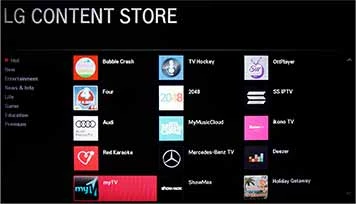
The LG Content Store is well-stocked with the apps most people use day to day. The heavy hitters are all there — major streaming services, music platforms, some fitness and casual gaming apps. But the store doesn't carry everything. Smaller regional services, international TV apps, and niche platforms are often absent. Some apps were available once but got pulled later. And certain apps simply require Android (the operating system used by Fire TV Sticks and Chromecast devices) rather than webOS, which means LG's store can never carry them.
There are plenty of legitimate reasons to look beyond what LG officially offers. You might be living abroad and want access to a streaming service from your home country. You might subscribe to a smaller platform that hasn't negotiated a partnership with LG. Or you might want a media player that supports more file formats — like MKV files with certain audio codecs — than LG's built-in player handles.
The goal is filling genuine gaps, not tinkering for its own sake. If an app you want isn't in the store and you've confirmed that, working around it is often worth the effort. It's similar in spirit to a guide like how to play Xbox One on a laptop screen with HDMI — a bit of setup work that solves a real problem once you understand the steps.
If the app you want is already in the LG Content Store, don't complicate things — install it from there and move on. The official version receives automatic updates, passes LG's security review, and integrates cleanly with your TV's interface. The extra effort of sideloading only pays off when there's no official option at all.
You might also want to skip the software route if you're not comfortable using command-line tools (text-based computer commands typed into a terminal window) on a PC. The developer mode method has steps that can feel unfamiliar if you've never done anything like it before. In that case, a hardware streaming device is a far more user-friendly path.
Warning: Only download IPK or APK app files from the official developer's website — unofficial file-sharing sites are a common source of malware disguised as legitimate apps.
If you're going the software route on a webOS TV, a few things need to be in place before you begin. First, install the LG Developer Mode app from the LG Content Store — it's listed there officially, which is convenient. You'll also need to create a free account on LG's developer portal. From your PC or laptop, you'll download the webOS CLI (Command Line Interface — a text-based tool that lets your computer communicate with the TV over your home network).
The app file you want to install needs to be in IPK format (LG's proprietary app package format, similar to Android's APK). Some developers release webOS builds of their apps directly on their own websites, so that's the first place to check. This kind of step-by-step technical setup is in the same spirit as our guide on how to get started with 3D printing at home — a few things to configure upfront, but very manageable once you work through it once.
For a hardware solution, you'll need a streaming device and an available HDMI port on your TV. The Amazon Fire TV Stick, Google Chromecast with Google TV, and Roku Streaming Stick are the most popular choices and are widely available online and in stores. Prices typically fall between $25 and $50 depending on the model.
These devices connect through HDMI and run completely independently of your LG TV's software. They have their own app stores and update cycles. Once you switch your TV's input to the HDMI port the device is plugged into, you're operating entirely within that device's ecosystem. If you're also thinking about wireless audio for your setup, our post on how to connect a Bluetooth headset to PS3 covers wireless pairing concepts that apply across many platforms. And when evaluating your display setup, our breakdown of how to choose a gaming monitor for PC or console covers screen specs worth knowing before you commit.
Developer Mode is the native software method for webOS TVs. Open the LG Developer Mode app on your TV, log in with your developer account, and enable the mode. Your TV will display an IP address (a numerical identifier like 192.168.1.x) that your PC uses to connect to it. From your PC, use the webOS CLI tool to pair with the TV, then push the IPK file to it over your local network. The app appears in your TV's launcher immediately after — just like any official app.
The main limitation is the 50-hour expiration timer. LG's developer mode automatically shuts off after 50 hours and requires manual renewal. It's a deliberate restriction meant to discourage permanent unofficial installations. If you're using the app regularly, you'll get into a routine of renewing it — some users tie it to a weekly schedule so they don't get caught off guard.
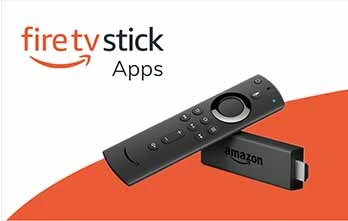
If the software approach sounds like too much work — or you have a Netcast TV where it simply isn't an option — a streaming stick is the cleanest solution. Plug it into an HDMI port, follow the on-screen setup wizard, and you'll have a fully independent app store available within minutes. The Amazon Fire TV Stick is particularly flexible: it runs Android-based Fire OS and lets you sideload APK files using a free app called Downloader, no computer required.
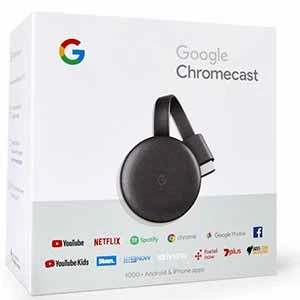
Google Chromecast with Google TV gives you access to the Google Play Store with thousands of apps. Roku takes a more curated approach — its app store is controlled by Roku — but it still offers far more options than the LG Content Store. Each device has trade-offs. Pick based on which ecosystem (Amazon, Google, or Roku) you're already most familiar with. Your existing accounts and subscriptions will carry over smoothly.
| Method | Compatible TVs | Difficulty | Cost | Key Limitation |
|---|---|---|---|---|
| LG Developer Mode | webOS models only | Moderate | Free | Must re-enable every 50 hours |
| Amazon Fire TV Stick | Any TV with HDMI | Easy | $25–$50 | Tied to Amazon ecosystem |
| Google Chromecast | Any TV with HDMI | Easy | $30–$50 | Requires Google account |
| Roku Streaming Stick | Any TV with HDMI | Easy | $30–$40 | More curated app store |
| Android TV Box | Any TV with HDMI | Moderate | $40–$100 | Quality varies by brand |
The most common use case is simply reaching a streaming service that LG's store doesn't carry. This might be a regional broadcaster's app, an international sports network, or a smaller subscription service that hasn't partnered with LG. It could also be an older app that once had an LG version but was later discontinued, leaving users without an official reinstall path.
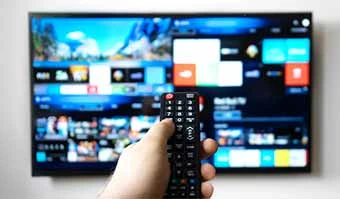
Region-restricted apps — those only officially available in certain countries — are another popular use case. Some users pair third-party app installation with a VPN app, which masks your internet location to make it appear as though you're browsing from a different country. This adds a layer of complexity, but it's a common and workable solution for frequent travelers or anyone with content needs that don't fit their current location.
Gaming and media tools make up another real category of use. Emulators (software that replicates older game consoles so you can play retro games without the original hardware), cloud gaming clients, and media players with broader format support are all things you can access once you step outside the official store. Kodi, one of the most widely used open-source media players, is frequently installed this way — it gives you a powerful local media library and handles file types LG's built-in player stumbles on. If you're building out a more complete entertainment and audio setup, our post on how to use a headset mic on PC with one jack covers audio workarounds that are relevant to multi-device setups like this one.
A few simple checks before you start will save you real frustration later. First, make sure your LG TV is running the latest firmware (the TV's internal operating software). Outdated firmware can cause compatibility issues with developer tools and pairing connections. Go to Settings → All Settings → General → About This TV → Check for Updates and apply anything available before you begin.
Also confirm that your TV and PC are on the same Wi-Fi network. The developer mode pairing process works over your local network, and if your router has "client isolation" enabled (a setting that prevents devices from seeing each other), the connection will fail silently. If pairing consistently doesn't work, that router setting is the first thing to investigate.
Once an app is installed through unofficial means, it won't receive automatic updates through the LG Content Store. You'll need to check the developer's website periodically for new versions and reinstall manually when they release one. That's a reasonable trade-off for access to apps LG doesn't officially support, but it's worth factoring into your decision before you start.
Also keep in mind that certain LG firmware updates have, in the past, reset developer mode or affected sideloaded apps. It's not common, but it happens. Before accepting a major firmware update, do a quick search for reports from other users with your specific TV model. The same kind of informed, look-before-you-leap approach applies here as anywhere else in consumer tech — much like understanding how a device actually works before depending on it, which is the whole premise behind a guide like how radar detectors work.
Not every method works on every model. LG Developer Mode is only available on webOS TVs, which covers most models from around 2014 onward. Older Netcast TVs don't support developer mode, so plugging in a hardware streaming device via HDMI is the more practical option for those sets.
It can be safe if you're careful about your sources. The main risk is downloading app files from untrustworthy websites. Stick to the official developer's website or well-known open-source projects. Avoid random file-sharing sites and unofficial APK repositories, which are common vectors for malware.
Usually yes, but not always. Some LG firmware updates have reset developer mode or removed sideloaded apps in the past. It's worth doing a quick search for your specific TV model before accepting a major update, so you know what to expect and can plan accordingly.
IPK is LG's native app package format for webOS — similar to Android's APK format. Developers who officially support webOS may release IPK files on their own websites. Some open-source projects, like certain media players and utilities, also distribute webOS builds as IPK files.
Yes, the developer mode method requires a PC or Mac with the webOS CLI tool installed. It communicates with your TV over your local Wi-Fi network. If you'd rather skip the computer setup entirely, an external streaming stick is a simpler and equally capable alternative.
LG built the 50-hour timeout as a deliberate restriction. The developer mode is technically intended for app developers testing builds on real hardware, not for end users installing apps permanently. You can re-enable it manually as often as you need — it just requires you to log back into the app on your TV.
For most people, plugging in an Amazon Fire TV Stick or Google Chromecast with Google TV is the simplest path. These devices cost roughly $30–$50, take only a few minutes to set up, and give you access to a much broader app selection without any command-line tools, developer accounts, or 50-hour timers to manage.
Whether you go the software route with LG Developer Mode or the hardware route with a streaming stick, getting the apps you actually want on your LG TV is entirely within reach. Start by confirming which operating system your TV runs, then pick the method that matches your comfort level and budget. Head over to the tech and electronics section for more hands-on guides like this one — there's plenty more worth exploring.


About Mike Constanza
For years, Mike had always told everyone "no other sport like baseball." True to his word, he keeps diligently collecting baseball-related stuff: cards, hats, jerseys, photos, signatures, hangers, shorts (you name it); especially anything related to the legendary player Jim Bouton.Mike honorably received Bachelor of Science degree in Business Administration from University of Phoenix. In his graduation speech, he went on and on about baseball... until his best friend, James, signaled him to shut it.He then worked for a domain registrar in Phoenix, AZ; speciallizng in auction services. One day at work, he saw the site JimBouton.com pop on the for-sale list. Mike held his breath until decided to blow all of his savings for it.Here we are; the site is where Mike expresses passion to the world. And certainly, he would try diversing it to various areas rather than just baseball.
You can get FREE Gifts. Or latest Free phones here.
Disable Ad block to reveal all the info. Once done, hit a button below
 im
im