Over 500 million AirPods have been sold worldwide — and a surprising number of those owners use Windows laptops every day and have no idea they can connect AirPods to Dell laptop without a single adapter or extra app. If you've been assuming Apple earbuds only work with Apple devices, you're not alone. But you're wrong, and this guide is going to fix that. Your AirPods are Bluetooth headphones. Your Dell almost certainly has Bluetooth built in. That's the whole equation. Browse our tech and electronics section for more guides like this one.
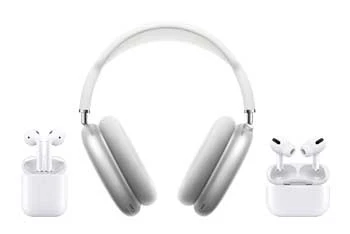
The connection itself takes about three minutes. But there are a handful of Windows settings that trip people up every single time — audio output routing, Bluetooth power management, codec selection. Small things, big frustration. Once you understand how your Dell handles Bluetooth audio, you'll be able to diagnose issues in seconds instead of spending an hour on forums reading answers that don't actually apply to your situation.
This guide covers everything: the fast setup, the smarter approach for experienced users, the tricks that make Bluetooth stable, and the fixes for the problems that refuse to go away. By the time you're done reading, your AirPods will be connected and your audio will be routing correctly.
Contents
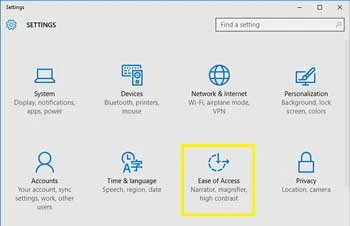
Put your AirPods in their case and open the lid. Press and hold the small circular button on the back of the case until the status light flashes white. That white flash means pairing mode is active. If it flashes amber, the case needs charging first. Now go to your Dell laptop and do this:
Done. Your AirPods are now paired. But pairing and audio routing are two separate things on Windows — don't assume audio automatically switches just because the connection succeeded.
Right-click the speaker icon in your taskbar and choose Open Sound settings. Under "Output," click the dropdown and select your AirPods. You'll likely see two entries — one labeled "Headphones" and one labeled "Headset." Always choose Headphones. The Headset option forces a lower-quality audio profile to support simultaneous microphone input, and the sound quality difference is immediately obvious. Pick Headphones every time unless you have a specific reason not to.
If you've never paired Bluetooth on Windows before, the Settings path above is exactly where you should start. It walks you through each step visually, confirms the connection clearly, and gives you a starting point for troubleshooting if something goes wrong. Use it until the process feels familiar.
Once your AirPods have been paired with your Dell once, you don't need to go back through Settings. Open the AirPods case near your laptop with Bluetooth on and they'll reconnect automatically — most of the time. When they don't, click the Bluetooth icon in your system tray and select your AirPods directly from the list. Fewer clicks, same result. If you're the type who already has a reliable USB cable setup for your Xbox controller, you already know the value of getting peripherals to reconnect without ceremony.
Pro tip: On Windows 11, pin your AirPods to the Quick Settings panel — one click to switch audio output, no menus required.
An outdated Bluetooth driver causes more connection problems than any other factor, and most people never think to check it. Open Device Manager (search it from the Start menu), expand Bluetooth, right-click your adapter, and choose Update driver. Better yet, go to Dell's support site and search by your laptop's service tag — you'll get the exact driver built for your hardware. This single step resolves the majority of stuttering, dropout, and pairing failure complaints.
Windows uses the SBC Bluetooth audio codec when connecting AirPods. On Apple devices, AirPods use AAC, which delivers noticeably better sound. On your Dell, you're getting SBC — functional, but not optimal. For casual listening, the difference won't bother you. For music production, podcasting, or anything where audio quality matters, a wired headset or USB audio interface is the smarter choice.
| Feature | AirPods on Mac / iPhone | AirPods on Dell Laptop |
|---|---|---|
| Audio Codec | AAC (higher quality) | SBC (standard quality) |
| Automatic Ear Detection | Yes — pauses on removal | No |
| Double-Tap / Stem Controls | Fully functional | Play/pause only |
| Battery Status Display | Shown in menu bar | Not shown natively |
| Microphone Quality | High (AAC profile) | Reduced (Headset mode SBC) |
| Seamless Device Switching | Yes (Apple ecosystem) | Manual switching required |
Windows has a habit of switching off your Bluetooth adapter to conserve battery — and it does this without warning you. The result looks like a random AirPods dropout. Fix it permanently: open Device Manager → Bluetooth → your adapter → Properties → Power Management and uncheck "Allow the computer to turn off this device to save power." This single setting eliminates the most common disconnect complaint. Do it now before you run into the problem.
Just opening the AirPods case does not put them in pairing mode when they've already been paired to another device. You must hold the back button until the light flashes white — not amber. Amber means the case is low on charge or the AirPods are resetting. White means ready to pair. If your Dell doesn't see the AirPods within a few seconds of the white flash, move the case closer. Bluetooth range is shorter than most people expect during active pairing.
This one catches almost everyone the first time. Your AirPods can show as "Connected" in Bluetooth settings while your laptop speakers are still playing audio. Windows treats pairing and audio output as completely separate decisions. Always open Sound Settings and confirm the output device after connecting. It takes five seconds and saves you ten minutes of confusion. Anyone who has dealt with audio routing quirks on a PS3 storage or AV setup knows that digital audio devices love to default to the wrong output at the worst time.
Standard AirPods connect to one device at a time. If your iPhone or Android phone is actively using the AirPods connection, your Dell can't take over. The fix is simple: put your phone down or turn off its Bluetooth before trying to connect to your laptop. AirPods Pro with multipoint Bluetooth can handle two connections simultaneously, but even that feature behaves inconsistently on Windows — don't count on it.
Partially true. Dramatically overstated. Yes, you lose some features — battery readout, automatic ear detection, seamless switching. But the core function of wireless audio works completely fine on your Dell. You can take calls, listen to music, watch videos, and join meetings. If you're already building out a solid desktop setup and researching upgrades like the best PC radiators for a custom build, adding AirPods to your Windows workflow is a reasonable move, not a compromise you need to apologize for.
You don't. Windows Bluetooth handles AirPods natively, out of the box. Apps like MagicPods exist to restore some of the Apple-exclusive features (battery display, ear detection) and they work reasonably well — but they're optional extras. Start without any additional software. Add apps only if you run into a specific missing feature that actually matters to your daily workflow.

Work through this in order. First, confirm the status light flashed white — not amber. Second, toggle Bluetooth off and back on in Settings. Third, restart your Dell completely and try again from scratch. If the AirPods still don't appear, open Device Manager and look for any Bluetooth device showing an error icon or yellow triangle. A corrupted or missing driver is the culprit in most cases, and updating it resolves the issue immediately.
Three fixes to try in this exact order:
If none of those three steps work, your Bluetooth adapter driver is the next thing to update. Dell's support site has model-specific drivers that fix compatibility issues the generic Windows driver doesn't address.
You're in Headset mode. This is the most common audio quality complaint and the fix is instant. Open Sound Settings, click the output dropdown, and switch from the entry labeled "Headset" to the one labeled Headphones. Headset mode sacrifices audio quality to reserve bandwidth for simultaneous microphone input. The difference between the two is stark — switching to Headphones mode sounds like removing a wet blanket from your speakers.
No. AirPods use Bluetooth exclusively — there is no wired connection option. Nearly every Dell laptop released in the last decade has Bluetooth built in. If yours doesn't, a USB Bluetooth adapter costs $10–$15 and adds the capability instantly with no software setup required.
Yes, both. The pairing steps are nearly identical across both versions. Windows 11 offers a slightly cleaner Bluetooth shortcut in the Quick Settings panel, but the core process — Settings, Devices, Add Bluetooth device — works the same way on both.
Windows defaults to Headset mode when it detects a Bluetooth headset with mic capability. Headset mode uses a lower-quality audio codec to support two-way audio simultaneously. Switch your output device to the Headphones entry in Sound Settings. If you need the mic, you accept the audio trade-off — or use a dedicated USB microphone for better quality on both ends.
Standard AirPods connect to one device at a time. AirPods Pro (2nd generation) and AirPods Max support multipoint Bluetooth, meaning two simultaneous connections — but switching on Windows is unreliable. The practical approach for most people is to disconnect from one device manually before connecting to the other.
The most likely cause is Windows power management. Your system turns off the Bluetooth adapter to save battery without alerting you. Go to Device Manager, find your Bluetooth adapter, open its Properties, click the Power Management tab, and uncheck "Allow the computer to turn off this device to save power." That single change resolves most random disconnect issues.
Not natively. Windows doesn't display AirPods battery status the way macOS does. Third-party apps like MagicPods add this feature for a small recurring fee. Without an app, you'll need to check battery on a paired Apple device or wait for the low-battery audio chime — which plays in your ear without warning when you're least expecting it.
Your AirPods don't care what logo is on your laptop — connect them to your Dell, switch to Headphones mode, and stop overthinking it.


About Lindsey Carter
Lindsey and Mike C. grew up in the same neighborhood. They also went to the same Cholla Middle School together. The two famillies from time to time got together for BBQ parties...Lindsey's family relocated to California after middle school. They occasiotnally emailed each other to update what's going on in their lives.She received Software Engineering degree from U.C. San Francisco. While looking for work, she was guided by Mike for an engineering position at the company Mike is working for. Upon passing the job interview, Lindsey was so happy as now she could finally be back to where she'd like to grow old with.Lindset occasionally guest posted for Mike, adding other flavors to the site while helping diverse his over-passion for baseball.
You can get FREE Gifts. Or latest Free phones here.
Disable Ad block to reveal all the info. Once done, hit a button below
 im
im