If your display has a persistent pink or magenta cast, knowing how to fix pink screen laptop problems can save you a stressful and potentially expensive trip to a repair shop. The short answer: most pink screen issues are software-related and fixable at home in under an hour. But the approach that works for a corrupted driver is completely different from the one that works for a failing display cable — and mixing them up wastes time and money. This guide breaks down both, so you can move straight to the right fix. For more device troubleshooting resources, browse the tech and electronics section.

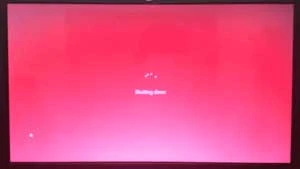
A pink screen tends to appear without warning. One minute the display looks normal, the next it carries a persistent rosy cast that a quick restart doesn't always clear. The cause could be a corrupted GPU driver, a loose internal display cable, chronic overheating, or a genuinely failing LCD panel. Each cause points to a different solution, and identifying which one you're dealing with is most of the battle.

Before jumping into any fix, run through two quick diagnostic questions: does the pink tint also appear on an external monitor connected to your laptop? And does it show up on the BIOS screen before Windows even loads? If the external monitor looks fine and the issue only appears after Windows boots, software is almost certainly the cause. If either diagnostic reveals pink at the hardware level, you're dealing with a physical problem — and the steps below will help you narrow down exactly what.
Contents
Not every pink screen signals a hardware failure — that's the first thing worth internalizing before you start worrying about repair costs. Display driver corruption is one of the most common causes, and it's entirely software-side. When your GPU driver conflicts with a recent Windows update or becomes partially corrupted, the color output can shift dramatically, producing that characteristic pink or magenta tint across the full display. Sometimes a simple driver rollback is all it takes to restore normal color output.
Hardware-side causes are a different story. They include:
The distinction between software and hardware matters because software fixes cost nothing but a few minutes of your time. Hardware fixes range from free — reseating a loose cable — to a few hundred dollars for a full panel or GPU replacement. Starting from the software side is always the smarter first move, regardless of how confident you are that it's a hardware issue.
If the pink tint disappears after a restart or clears up after you update or roll back drivers, the problem is almost certainly software-related. That's the good scenario. If it appears on the BIOS screen before Windows loads, software hasn't had a chance to do anything yet — that's a hardware issue. And if the pink tint only develops after the laptop has been running for 20 to 30 minutes, your GPU is likely running too hot, which causes color rendering errors as temperatures climb.
Managing GPU heat is worth understanding beyond just the pink screen problem. If your graphics card runs hot routinely, you might want to look into how to underclock your GPU — reducing its clock speed lowers heat output and can prevent display artifacts from developing over time, extending the usable life of both the GPU and the panel it's driving.
You don't need a technician's toolkit for most pink screen fixes. Here's what's actually worth having before you start:
Work through these before opening anything up or spending any money:

Pro tip: If your external monitor looks completely normal but your laptop screen is pink, the internal display cable is your most likely culprit — try reseating it before spending anything on a new panel.
Several widely held beliefs about pink screens lead people either to panic unnecessarily or to ignore a problem that actually needs attention. Here are the ones worth clearing up before you do anything else:
| Myth | Reality |
|---|---|
| "A pink screen always means the display needs replacing" | Driver issues cause the majority of pink screens — hardware replacement is often completely unnecessary |
| "It's always a GPU problem" | The display cable, software drivers, and even color profile settings can produce identical symptoms to a GPU failure |
| "If it works after a restart, it's probably fine" | Intermittent pink screens often indicate early hardware failure or driver instability — worth monitoring closely |
| "You need a technician just to diagnose it" | Plugging in an external monitor takes under a minute and immediately tells you whether it's a panel or GPU issue |
| "Color calibration tools can fix hardware damage" | Color profiles only adjust software output — they cannot compensate for a physically damaged cable or a failing panel |
The costliest mistake you can make is skipping the external monitor test. It's free, it takes less than a minute, and it immediately tells you whether your next step should be a driver reinstall or a trip inside the laptop's chassis.
To understand why displays behave the way they do at a component level, Wikipedia's overview of LCD technology explains how the layered structure of a display panel — backlight, polarizer, liquid crystal layer, color filters — each contributes to the final image. A failure or disruption in any one layer can shift your output toward pink or magenta in ways that look identical from the outside.
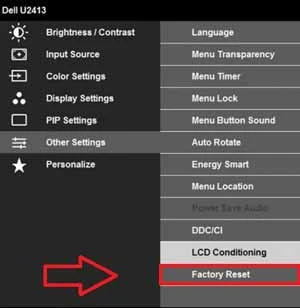
Some people spend a long time adjusting color profiles and calibration settings trying to eliminate the pink tint through software alone. Display calibration is genuinely valuable for color accuracy in photography and video work, but it won't fix a pink screen caused by a bad cable or a failing GPU. Your first move should be resetting all display settings to factory defaults — sometimes a misconfigured ICC color profile or an accidentally applied filter is the entire problem. But don't expect calibration to mask physical damage. It simply doesn't work that way.
A surprising number of people make their situation worse in the process of trying to fix it. The most common DIY errors:
Many people skip straight to opening the laptop and poking around at hardware without first exhausting the software options. That's the wrong order. Start with the cheapest, least invasive fixes and work outward:
Only move to hardware inspection if all software options fail and the pink tint still appears at the BIOS level or on an external monitor connected directly to your GPU. If you're at that point and considering a display upgrade, our guide on how to choose a gaming monitor for PC or console walks you through what to prioritize — or if you'd rather use a TV as your display, check out our guide on setting up a home theater system on a budget for a practical approach to that setup.
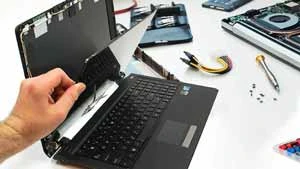
Your out-of-pocket cost depends entirely on what's actually broken. Here's an honest breakdown of what each fix runs:
| Problem | DIY Cost | Difficulty Level |
|---|---|---|
| Driver reinstall or software reset | Free | Easy |
| Color settings or ICC profile reset | Free | Easy |
| Reseating the internal display cable | Free (time only) | Moderate |
| Replacement LVDS or eDP display cable | $5–$25 | Moderate |
| Replacement LCD panel (self-installed) | $40–$150 | Hard |
| External monitor as a permanent workaround | $80–$300 | Easy |
For most users, the real fix costs nothing. If it does require a part, a display cable is almost always the cheapest hardware component to replace and one of the more common causes of a how to fix pink screen laptop issue that doesn't respond to software treatment.
If you take your laptop to a repair shop, expect to pay for parts plus labor. Professional repair costs typically break down like this:
For older or budget laptops, the cost of a professional screen replacement can approach the laptop's resale value. In those cases, using an external display as a long-term workaround is a genuinely practical choice. Connecting via HDMI to a TV works well — our guides on setting up a Vizio Smart TV and configuring an LG Smart TV are useful if you're repurposing a TV as a primary display for a laptop with a damaged screen.
If the GPU itself is failing, the repair math rarely works out on older hardware. A GPU swap on a laptop often costs more than the machine is worth on the used market. At that point, a new laptop or a quality external monitor connected to a functional machine tends to be the financially sound decision — and the one most repair shops will quietly recommend when you ask them directly.
A pink screen is rarely the end of your laptop — most of the time, the fix is a driver reinstall, a cable reseat, or a temperature check, not a hardware replacement.


About Lindsey Carter
Lindsey and Mike C. grew up in the same neighborhood. They also went to the same Cholla Middle School together. The two famillies from time to time got together for BBQ parties...Lindsey's family relocated to California after middle school. They occasiotnally emailed each other to update what's going on in their lives.She received Software Engineering degree from U.C. San Francisco. While looking for work, she was guided by Mike for an engineering position at the company Mike is working for. Upon passing the job interview, Lindsey was so happy as now she could finally be back to where she'd like to grow old with.Lindset occasionally guest posted for Mike, adding other flavors to the site while helping diverse his over-passion for baseball.
You can get FREE Gifts. Or latest Free phones here.
Disable Ad block to reveal all the info. Once done, hit a button below
 im
im